
This blog explains the three main areas of the Technological Pedagogical Content Knowledge framework and offers tips to make sure that your delivery via a virtual classroom is inclusive.
Inclusive virtual classrooms
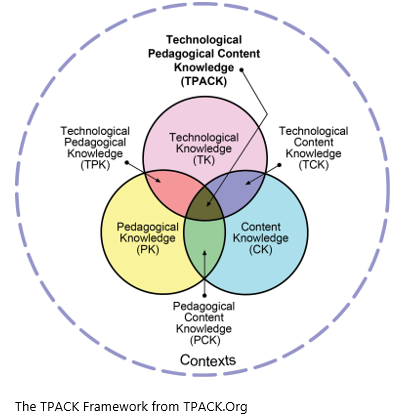
The Technological Pedagogical Content Knowledge (TPACK) framework describes the knowledge requirements of teaching with technology. As teachers, we strive to be right at the centre of the Venn diagram. The three main areas of knowledge:
- Technical knowledge – knowing what tools are available and being aware of any barriers they might present to some of our learners.
- Content knowledge – knowing the subject matter and how to make any resources you use accessible.
- Pedagogical knowledge – knowing how to deliver so that learning can be inclusive.
As a teacher operating in a virtual classroom, there is a need to work with and combine the three types of knowledge to benefit your learners. It would be impossible to meet all learners’ needs, but you can do things, to work towards being inclusive, and reduce potential barriers.
Top Tips for making your virtual classroom inclusive:
The following tips are specific to delivering through a virtual classroom, they are in addition to the effective practices you already use in the face-to-face classroom.
- When presenting with the use of Microsoft presentation, you can turn on closed captions. This automatically displays what you are saying as you speak. This would benefit learners with hearing loss and could also be useful to ESOL learners, as captions can even be displayed in different languages. Using this tool will automatically make you try to speak more clearly and slow the pace you speak, to enable the tool to correctly capture your words. You will need to tell learners that it might not be 100% accurate. The settings to turn them on can be found on the Slide Show tab. This feature is also available for Google Slides.
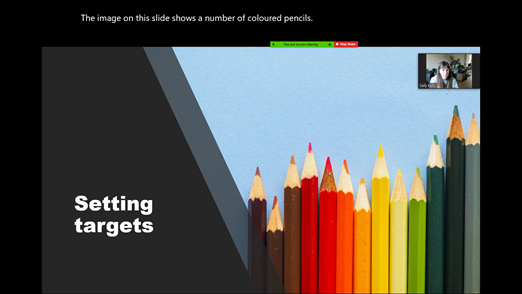
- Pin important webcams – If you have learners who lip read or who work with a sign language interpreter, then knowing that you can pin someone’s webcam so that it can always be seen on the screen is essential.
- Make sure that your face can be clearly seen, this means front lighting your face – not with the light from a window, for example, behind you.
- Offer alternatives to typing – Learners with dyslexia or low literacy skill may feel anxious typing into the chat pane. Offer the alternative of using the emoticons to raise and hand, so that you know a learner wishes to speak their answer and then invite them to turn on their microphone.
- Consider turning off the chat pane – Learners may feel overwhelmed if the information is coming to them in multiple ways: text/images on the screen, you speaking, messages in the chat pane and emoticons. If it is not essential to have the chat pane on all the time, suggest learners close it for input parts of the session.
- Use the breakout rooms to allow learners to work on differentiated tasks or in smaller groups. You can visit each room to provide additional support.
- Record your sessions, to allow learners to revisit learning. Provide a menu of key places with the time to help learners quickly find relevant bits. And don’t forget to pause the recording when learners are in breakout rooms.
- Build-in frequent activities to support those learners who have low concentration.
- Build-in frequent breaks too, as some learners will find the concentration required to learn in this environment will be very tiring.
Most of all, try out different technological pedagogical approaches with your learners, and through their feedback, you’ll find out what is effective in meeting their needs.
Written for HOLEX by Ideas4Learning Limited